Showing posts with label software. Show all posts

Wednesday, January 20, 2010

Top 10 Programming Fonts

source http://hivelogic.com/articles/top-10-programming-fonts

I’m a typeface geek, and when it comes to selecting a font I’ll stare at all day, I tend to be pretty picky. Recently, when I discovered that a friend was using a sub par typeface (too horrible to name here) for his Terminal and coding windows, my jaw dropped, my heart sank a little, and I knew it was due time for me to compose this article.
What follows is a round-up of the top 10 readily-available monospace fonts. Many of these fonts are bundled along with modern operating systems, but most are free for download on the web. A few, notably Consolas, are part of commercial software.

A note about anti-aliasing

In the past, we’ve had to decide between tiny monospace fonts or jagged edges. But today, modern operating systems do a great job of anti-aliasing, making monospace fonts look great at any size. It’s not 1990 anymore. Give your tired eyes a break and bump up that font size.
If you have any doubt that anti-aliased fonts are apropos for code, note that even the venerable BBEdit — which for years has shipped with un-aliased Monaco 9 set as the default — has made the jump. The app now ships with a specially licensed version of the Consolas font from Ascender, bumped up in size, and with anti-aliasing on by default. Panic includes a special anti-aliased font (Panic Sans, which is actually just a version of Deja Vu Sans Mono) with its popular Coda application.
Unless otherwise noted, I’ve used a larger size font, 15-point in fact, for the examples here to illustrate their legibility at larger sizes and with anti-aliasing turned on.

10. Courier

All systems ship with a version of Courier (sometimes Courier New), and unfortunately, many have it set as the default font for terminal and editor windows. It does the job, but it’s a bit dull and boring, lacking style and class. I don’t recommend this font if you have any other choice — and fortunately, you do. If you use this font, please bump the size and turn on anti-aliasing.
Courier New Figure 1 Courier New

9. Andale Mono

A bit better than the Courier family, Andale Mono is still relegated to the “default font” category as it ships with some systems, and you wouldn’t want to download or use it if it wasn’t already there. The character-spacing is a bit too clumsy and the letters are a bit too wide for my tastes.
Andale Mono Figure 2 Andale Mono

8. Monaco

Monaco is the default monospace font on the Mac and has been since its inclusion in System 6. It’s a solid, workhorse font that really shines at smaller font sizes with anti-aliasing turned off. I loved this typeface back when my eyes could tolerate staring at a 9-point font for hours, but those days are behind me. This font looks great at 9 or 10-points (Figure 4), and doesn’t look too shabby anti-aliased at higher sizes (Figure 3).
As far as I know, you can only get Monaco as a part of Mac OS, but there are alternatives, so keep reading.
Monaco Figure 3 Monaco
Monaco 9 Figure 4 Monaco 9-point, without anti-aliasing

7. Profont

Profont is a Monaco-like bitmap font available for Mac, Windows, and Linux (there’s also a modified version for Mac OS X called ProFontX by a different author). They’re best at smaller sizes, and make a great alternative to Monaco if you’re on a non-Mac platform and want really tiny fonts and the eyestrain that goes along with them.
Profont (and ProFontX) is intended for use at 9-points with anti-aliasing turned off.
Profont Figure 5 Profont 9-point, without anti-aliasing

6. Monofur

Monofur is a unique monospace font that looks great anti-aliased at all sizes. It’s a fun font with a distinct look that is vaguely reminiscent of Sun’s OPEN LOOK window manager, which ran Solaris (aka SunOS) systems back in the late 80’s. If you’re looking for something a bit different, try this font, but make sure you have anti-aliasing turned on, even at small sizes.
Monofur Figure 6 Monofur

5. Proggy

Proggy is a clean monospace font that seems to be favored by Windows users, although it works fine on a Mac. It’s a clean font intended to be used only at smaller points, and without anti-aliasing.
Proggy Clean Figure 7 Proggy Clean at 15-point (yes, 15-point), without anti-aliasing

4. Droid Sans Mono

The Droid font family (available for download here) is a nice font family designed for use on the small screens of mobile handsets, like Android, and licensed under the Apache license.
Droid Sans Mono makes for a great programming font. It’s got a bit of flair, and stands out among the other monospace fonts I’ve listed, and its only real flaw is the lack of a slashed zero.
Droid Sans Mono Figure 8 Droid Sans Mono

3. Deja Vu Sans Mono

The Deja Vu family of fonts are one of my favorite free font families, based on the excellent Vera Font family. The Deja Vu fonts have been updated with a wider range of characters while maintaining a similar look and feel to that of Vera.
This was my go-to font family for many years. It looks great at any size with anti-aliasing turned on.
Panic ships a font with it’s Coda application called “Panic Sans” which is based on this font. Gruber says via email that when he compared Panic Sans against Vera, he noted that “Panic had noticeably crisper punctuation chars” and that it seemed like they had improved the hinting on some characters as well.
Deja Vu Sans Mono Figure 9 Deja Vu Sans Mono

2. Consolas

Consolas suddenly appeared on my Mac after I installed Microsoft Office, along with a handful of other new fonts from Microsoft.
This font was designed by Luc(as) de Groot for Microsoft’s ClearType font family (there’s a nice write-up with samples of each of the new Microsoft fonts here). Consolas is a commercial font, but is bundled with many Microsoft products, so there’s a good chance you might already have it on your system.
You’ll absolutely want to have anti-aliasing turned on if you’re using Consolas, because it’ll look terrible without it.
Too bad it’s not free … if it was, it would be #1 on this list.
Consolas Figure 10 Consolas

1. Inconsolata

Inconsolata is my favorite monospaced font, and it’s free. Shortly after discovering it, it quickly supplanted Deja Vu Sans Mono as my go-to programming font. I use it everywhere, from Terminal windows to code editors. It has a certain sublime style that’s unique without being over the top, and it looks fantastic at both large and small sizes. I use this font when I show code samples in a presentation, and it’s the font we use in Terminal and TextMate windows when filming PeepCode screencasts.
Inconsolata is designed to be used with anti-aliasing enabled, but it’s surprisingly legible even at very small sizes. A big thanks to Raph Levien for creating this font, and for making it free.
Inconsolata Figure 11 Inconsolata
Thoughts?

Did I miss your favorite coding typeface? Think the list is out of order? Let me know. If there’s a typeface you think should be in this list, please let me know in the comments section below. If it meets my ridiculous standards, I’ll review it and include it in a follow-up article.

Monday, April 13, 2009

bibliography conversion utilities

source http://www.scripps.edu/~cdputnam/software/bibutils/bibutils2.html

description

The bibutils program set interconverts between various bibliography formats using a common MODS-format XML intermediate. For example, one can convert RIS-format files to Bibtex by doing two transformations: RIS->MODS->Bibtex. By using a common intermediate for N formats, only 2N programs are required and not N²-N. These programs operate on the command line and are styled after standard UNIX-like filters.

I primarily use these tools at the command line, but they are suitable for scripting and have been incorporated into a number of different bibliographic projects.


MODS

The XML intermediate is the Library of Congress's Metadata Object Description Schema (MODS) version 3.1. This is a very flexible standard that should prove quite useful as the number of tools that directly interact with it increase. For other programmers working on tools for working with MODS, I've written a quick introduction.


program tools
  • bib2xml - convert BibTeX to MODS XML intermediate
  • biblatex2xml - convert BibLaTeX to MODS XML intermediate
  • copac2xml - convert COPAC format references to MODS XML intermediate
  • end2xml - convert EndNote (Refer format) to MODS XML intermediate
  • endx2xml - convert EndNote XML to MODS XML intermediate
  • isi2xml - convert ISI web of science to MODS XML intermediate
  • med2xml - convert Pubmed XML references to MODS XML intermediate
  • modsclean - a MODS to MODS converter for testing puposes mostly
  • ris2xml - convert RIS format to MODS XML intermediate
  • xml2ads - convert MODS XML intermediate into Smithsonian Astrophysical Observatory (SAO)/National Aeronautics and Space Administration (NASA) Astrophyics Data System or ADS reference format (converter submitted by Richard Mathar)
  • xml2bib - convert MODS XML intermediate into BibTeX
  • xml2end - convert MODS XML intermediate into format for EndNote
  • xml2isi - convert MODS XML intermediate to ISI format
  • xml2ris - convert MODS XML intermediate into RIS format
  • xml2wordbib - convert MODS XML intermediate into Word 2007 bibliography format


  • downloads
  • bibutils_4.1_i386.tgz - x86 Linux binaries
  • bibutils_4.1_win.zip - Windows binaries
  • bibutils_4.1_cygwin.zip - Cygwin binaries (compiled on Windows XP)
  • bibutils_4.0_osx.tgz - MacOSX binaries
  • bibutils_4.1_src.tgz - C source code

    The main difference between Bibutils version 4 and Bibutils version 3 is the library API. Documentation for the library API is available here.

    The older Bibutils version 2 generates a non-standard XML intermediate that isn't as useful as MODS. I'm still keeping it available; however, I encourage all users to migration to the latest version 3 release.

    For other programmers working on tools for working with MODS, I've written a quick introduction.

    Starting with the version 3.15 release, the programs have been reorganized into a nice library for being plugged into other progjects. Documentation for the library API will be available shortly.


  • MODS flags

    Several flags available for the end2xml, endx2xml, bib2xml, ris2xml, med2xml, and copac2xml programs:

    -h, --help                 display help

    -v, --version display version

    -a, --add-refcount add "_#", where # is reference count to reference id

    -s, --single-refperfile put one reference per file name by the reference number

    -i, --input-encoding interpret the input file as using the requested
    character set (use w/o argument for current list
    derived from character sets at www.kostis.net)
    unicode is now a character set option

    -u, --unicode-characters encode unicode characters directly in the file
    rather than as XML entities (default)

    -un,--unicode-no-bom as -u, but don't include a byte order mark

    -x, --xml-entities change default UTF8-encoded characters to XML
    entities (opposite of -u)

    -nl,--no-latex do not covert latex character combinations (bib2xml)

    -d, --drop-key don't put citation key in the mods id field

    -c, --corporation-file with argument specifying a file containing a list
    of corporation names to be placed in
    instead
    of type="personal" and eliminate name mangling

    --verbose verbose output

    --debug very verbose output (mostly for debugging)


    bib2xml

    bib2xml converts a BibTeX-formatted reference file to an XML-intermediate bibliography file. Specify file(s) to be converted on the command line. Files containing BibTeX substitutions strings should be specified before the files where substitutions are specified (or in the same file before their use). If no files are specified, then BibTeX information will be read from standard in.

    bib2xml BibTeX_file.bib > output_file.xml


    copac2xml

    copac2xml converts a COPAC formatted reference file to a MODS XML-intermediate bibliography file.

    end2xml

    end2xml converts a text endnote-formatted reference file to an XML-intermediate bibliography file. This program will not work on the binary library; the file needs to be exported first.

    Endnote tagged formats ("Refer" format export) look like:

    %0 Journal Article
    %A C. D. Putnam
    %A C. S. Pikaard
    %D 1992
    %T Cooperative binding of the Xenopus RNA polymerase I
    transcription factor xUBF to repetitive ribosomal gene enhancers
    %J Mol Cell Biol
    %V 12
    %P 4970-4980
    %F Putnam1992

    There are very nice instructions for making sure that you are properly exporting this at http://www.sonnysoftware.com/endnoteimport.html

    Usage for end2xml is the same as bib2xml.

    end2xml endnote_file.end > output_file.xml


    endx2xml

    endx2xml converts a EndNote-XML exported reference file to a MODS XML-intermediate bibliography file. This program will not work on the binary library; the file needs to be exported first.

    isi2xml

    isi2xml converts an ISI-web-of-science-formatted reference file to a MODS XML-intermediate bibliography file.

    Usage for isi2xml is the same as bib2xml.

    isi2xml input_file.isi > output_file.xml


    med2xml

    med2xml converts an medline XML formatted reference file to a MODS XML-intermediate bibliography file.

    To download references from PubMed, choose the "Display" option "XML" and then select "Send To" "File". This file is in the correct format for med2xml to read.

    ris2xml

    ris2xml converts a RIS-formatted reference file to an XML-intermediate bibliography file. ris2xml usage is as end2xml and bib2xml

    ris2xml ris_file.ris > output_file.xml


    xml2bib

    xml2bib converts the MODS XML bibliography into a BibTeX-formatted reference file. xml2bib usage is as for other tools

    xml2bib xml_file.xml > output_file.bib

    Starting with 3.24, xml2bib output uses lowercase tags and mixed case reference types for better interaction with Emacs. The older behavior with all uppercase tags/reference types can still be generated using the command-line switch -U/--uppercase.

    Command line options:

    • -v, --version ; report version information
    • -h, --help ; report help
    • -fc, --finalcomma ; add final comma in the BibTeX output for those that want it
    • -sd, --singledash ; use one dash instead of two (longer dash in latex) between numbers in page output
    • -b, --brackets ; use brackets instead of quotation marks around field data
    • -w, --whitespace ; add beautifying whitespace to output
    • -s, --single-refperfile ; put one reference per file name by the reference number
    • -o, --output-encoding ; interpret the input file as using the requested character set (use w/o argument for current list derived from character sets at www.kostis.net) unicode is now a character set option
    • -U, --uppercase ; use all uppercase for tags (field names) and reference types (pre-3.24 behavior)
    • -sk, --strictkey ; ensure only alphanumeric characters are used in BibTeX reference keys
    • -nl, --no-latex ; do not convert characters that can be converted to latex entities into latex entities
    • -nb, --no-bom ; do not write Byte Order Mark if writing UTF-8

    Default Output Final Comma
    @Article{Putnam1992,
    author="C. D. Putnam
    and C. S. Pikaard",
    year="1992",
    month="Nov",
    title="Cooperative binding of the
    Xenopus RNA polymerase I transcription
    factor xUBF to repetitive ribosomal
    gene enhancers",
    journal="Mol Cell Biol",
    volume="12",
    pages="4970--4980",
    number="11"}
    @Article{Putnam1992,
    author="C. D. Putnam
    and C. S. Pikaard",
    year="1992",
    month="Nov",
    title="Cooperative binding of the
    Xenopus RNA polymerase I transcription
    factor xUBF to repetitive ribosomal
    gene enhancers",
    journal="Mol Cell Biol",
    volume="12",
    pages="4970--4980",
    number="11",}
    Single Dash Whitespace
    @Article{Putnam1992,
    author="C. D. Putnam
    and C. S. Pikaard",
    year="1992",
    month="Nov",
    title="Cooperative binding of the
    Xenopus RNA polymerase I transcription
    factor xUBF to repetitive ribosomal
    gene enhancers",
    journal="Mol Cell Biol",
    volume="12",
    pages="4970-4980",
    number="11"}
    @Article{Putnam1992,
    author = "C. D. Putnam
    and C. S. Pikaard",
    year = "1992",
    month = "Jan",
    title = "Cooperative binding of
    the Xenopus RNA polymerase I transcription
    factor xUBF to repetitive ribosomal gene
    enhancers",
    journal = "Mol Cell Biol",
    volume = "12",
    pages = "4970--4980"
    }
    Brackets Uppercase
    @Article{Putnam1992,
    author={Putnam, C. D.
    and Pikaard, C. S.},
    title={Cooperative binding of the Xenopus
    RNA polymerase I transcription factor xUBF
    to repetitive ribosomal gene enhancers},
    journal={Mol Cell Biol},
    year={1992},
    month={Nov},
    volume={12},
    number={11},
    pages={4970--4980}
    }
    @ARTICLE{Putnam1992,
    AUTHOR="Putnam, C. D.
    and Pikaard, C. S.",
    TITLE="Cooperative binding of the Xenopus
    RNA polymerase I transcription factor xUBF
    to repetitive ribosomal gene enhancers",
    JOURNAL="Mol Cell Biol",
    YEAR="1992",
    MONTH="Nov",
    VOLUME="12",
    NUMBER="11",
    PAGES="4970--4980"
    }


    xml2ris

    xml2ris converts the MODS XML bibliography to RIS-formatted bibliography file. xml2ris usage is as for other tools

    xml2ris xml_file.xml > output_file.ris


    Command line options:

    • -v, --version ; report version information
    • -h, --help ; report help
    • -s, --single-refperfile put one reference per file name by the reference number
    • -o, --output-encoding interpret the input file as using the requested character set (use w/o argument for current list derived from character sets at www.kostis.net) unicode is now a character set option
    • -nb, --no-bom ; do not write Byte Order Mark if writing UTF-8

    xml2end

    xml2end converts the MODS XML bibliography to tagged Endnote (refer-format) bibliography file. xml2end usage is as for other tools

    xml2end xml_file.xml > output_file.end


    Command line options:

    • -v, --version ; report version information
    • -h, --help ; report help
    • -s, --single-refperfile put one reference per file name by the reference number
    • -o, --output-encoding interpret the input file as using the requested character set (use w/o argument for current list derived from character sets at www.kostis.net) unicode is now a character set option
    • -nb, --no-bom ; do not write Byte Order Mark if writing UTF-8

    xml2wordbib

    xml2wordbib converts the MODS XML bibliography to Word 2007-formatted XML bibliography file. xml2word usage is as for other tools

    xml2wordbib xml_file.xml > output_file.word.xml


    Command line options:

    • -v, --version ; report version information
    • -h, --help ; report help
    • -s, --single-refperfile put one reference per file name by the reference number
    • -o, --output-encoding interpret the input file as using the requested character set (use w/o argument for current list derived from character sets at www.kostis.net) unicode is now a character set option
    • -nb, --no-bom ; do not write Byte Order Mark if writing UTF-8

    faq

    How do I download the files?

    Files can be saved by right-clicking on the link. This will pull up a context-sensitive menu, from which you should choose "Save Link As..." (or whatever the appropriate item is for your web browser). Simply clicking on the links frequently loads the binary into the browser window. Not terribly useful.

    Downloads on this page are going to be archives of all of the executables (as zipped or tarred/gzipped files depending on the architecture).


    The programs don't run for me. What am I doing wrong?

    If you send me this question, I would immediately have to ask for more information. The follow items address specific problems.

    • "command not found" The message "command not found" on Linux/UNIX/MacOSX systems indicates that the commands cannot be found. This could mean that the programs are not flagged as being executable (run "chmod ugo+x xml2bib" for the appropriate binaries) or the executables are not in your current path (and have to be specified directly like ./xml2bib). A quick web search on chmod or path variables should provide many detailed resources.

    • I'm running MacOSX and I just get a terminal when I double-click on the programs. Simply put, this is not the way to run the programs. You want to run the terminal first and then issue the commands at the command line. It should be under Applications->Utilities->Terminal on most MacOSX systems I've seen. If you just double-click the program, the terminal corresponds to the input to the tool. Not so useful.

      Some links to get you started running the terminal in a standard UNIX-like fashion are at TerminalBasics.pdf [homepage.mac.com], [macdevcenter.com], and [ee.surrey.ac.uk].

      I'm happy to help with specific questions, but the more knowledgable you are the easier it will be to help (and I frankly don't have the time to help everyone learn basic UNIX).

    I am very interested in bug reports and problems in conversions. Feel free to e-mail me if you run into these issues. The absolute best bug reports provide error messages from the operating systems and/or input and outputs that detail the problems. Please remember that I'm not looking over your shoulder and I cannot read your mind to figure out what you are doing--"It doesn't work." isn't a bug report I can help you with.


    You have a MacOSX version, can you give me a MacOS9 version?

    Sorry. I'd like to, but these programs assume a command-line interface with normal standard in, standard out, and stardard error along with command-line arguments. MacOSX is a fundamental change in the operating sysem with a BSD (UNIX-like) core that I'm taking advantage of to provide a MacOSX binary. On the other hand, I don't know that much about MacOS9, and if it is possible to generate a useful binary from these sources let me know.


    This stuff is great, how can I help?

    OK, I actually don't get this question so often, though I have gotten very useful help through people who have willingly sent useful bug reports and sample problematic data to allow me to test these programs. I willingly accept bug reports, patches, new filters, suggestions on program improvements or better documentation and the like. All I can say is that users (or programmers) who contact me with these sorts of things are far more likely to get their itches scratched.


    license

    All versions of bibutils are relased under the GNU Public License (GPL). In a nutshell, feel free to download, run, and modify these programs as required. If you re-release these, you need to release the modified version of the source. (And I'd appreciate patches as well...if you care enough to make the change, then I'd like to see what you're adding or fixing.)

    Tuesday, April 15, 2008

    Download YouTube Videos as MP4 Files

    From http://googlesystem.blogspot.com/2008/04/download-youtube-videos-as-mp4-files.html

    An interesting side-effect of YouTube's recent push for higher quality videos is that most videos can be downloaded as MP4 files directly from YouTube. Until now, you could only get FLV files from your browser's cache or using one of the many websites that let you download YouTube videos. In fact, to download the MP4 files, you need to use the same URL like for FLV files and append "&fmt=18":

    http://www.youtube.com/get_video?video_id=ID&t=SIGNATURE&fmt=18

    ID is the video's identification value, SIGNATURE is a value that prevents you from downloading the file just by knowing the ID. You could create this URL by looking at the source code of a YouTube page, but it's much easier to automatically generate it.

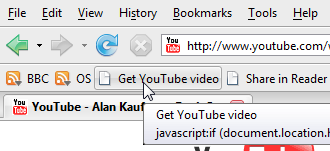
    One way is to save the following link as a bookmarklet by dragging it to your Links bar (in Firefox, Safari) or right-clicking and adding it to your favorites (in Internet Explorer, Opera):

    %20Download%20as%20MP4%20'+%20%20((navigator.userAgent.indexOf('Safari')!=-1)?'(control-click%20and%20select%20Download%20linked%20file%20as)':('(right-click%20and%20select%20Save%20'+%20(navigator.appName=='Microsoft%20Internet%20Explorer'?'target':'link')%20+'%20as)'))+'';}void(0);">Get YouTube video


    If you didn't manage to add the bookmarklet, this post has more detailed instructions.

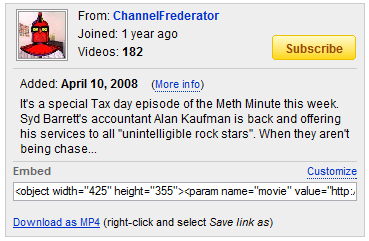
    When you want to download a YouTube video, click on the bookmarklet and you should see a new option below the embeddable code.


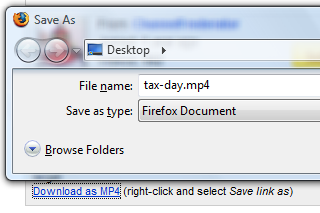
    Because YouTube doesn't send the right MIME type, you shouldn't click on the download link. Right-click and select "save link as" or "save target as" and enter a proper name for the video. Make sure to use the .mp4 extension when you enter the filename.


    Having to click on the bookmarklet is annoying, so this Greasemonkey script is a better alternative because it adds the download link automatically. It requires the Greasemonkey extension for Firefox or a similar plug-in for userscripts. Opera has built-in support for userscripts, so you only need to go to Tools > Preferences > Advanced > Content > JavaScript options, select the directory where you will put your script and copy the script to that directory.

    YouTube's MP4 files have a higher resolution, stereo sound and can be played with applications like VLC, MPlayer, iTunes, QuickTime. Not all YouTube videos can be downloaded as MP4 files and the fallback format is FLV.

    Note that YouTube's terms of use require you "not to access User Submissions or YouTube Content through any technology or means other than the video playback pages of the Website itself, the YouTube Embeddable Player, or other explicitly authorized means YouTube may designate," so these scripts could break YouTube's policies. The scripts only download files that are used by YouTube's player, so you may also find the videos in your browser's cache.

    Monday, March 31, 2008

    Wiki Software

    Mediawiki
    http://www.mediawiki.org/wiki/MediaWiki
    This one is the server behind the wikipedia, thus its stability and scalability is guaranteed. However it does not support WYSWYG, which may scare some inexperienced users.

    MoinMoin (Apache, Ubuntu, Fedora, etc)
    http://moinmo.in/

    Instiki
    http://www.instiki.org/show/HomePage
    Instiki (What Is Instiki) is a wiki clone so pretty and easy to set up, you’ll wonder if it’s really a wiki. In fact it’s not only a wiki. It supports file uploads, PDF export, RSS feeds, multiple users, multiple wiki sites and password protection. Some people even use Instiki as a CMS - Content Management System because of its ability to export static pages.

    Tikiwiki
    http://info.tikiwiki.org/tiki-index.php
    TikiWiki (Tiki) is your Groupware/CMS (Content Management System) solution. Tiki has the features you need:
    • Wikis (like Mediawiki)
    • Forums (like phpBB)
    • Blogs (like WordPress)
    • Articles (like Digg)
    • Image Gallery (like Flickr)
    • Map Server (like Google Maps)
    • Link Directory (like DMOZ)
    • Multilingual (like Babel Fish)
    • Bug tracker (like Bugzilla)
    • Free (LGPL)

    Monday, March 12, 2007

    Recommended Firefox Extensions

    1. Tab Mix Plus

    Tab Mix Plus enhances Firefox's tab browsing capabilities. It includes such features as duplicating tabs, controlling tab focus, tab clicking options, undo closed tabs and windows, plus much more. I strongly recommend the options of Select the tab pointed (Tool->Tab Mix Plus Option->Mouse->Mouse Gestures). It greatly decrease the amount of clicks when browsing.
    2. Session Manager
    Session Manager saves and restores the state of all windows - either when you want it or automatically at startup and after crashes. For example, if you start you work everyday by opening some webpages , you can store them in a session. Additionally it offers you to reopen (accidentally) closed windows and tabs. If you're afraid of losing data while browsing - this extension allows you to relax...
    3. Firefox Showcase
    If you habitually find yourself awash in open tabs (It seems that one of my classmates usually runs into such situation), clicking around looking for the page you need, Firefox Showcase will save you a lot of aggravation. Once you install the extension, you'll have a new Showcase submenu under the View menu. From here you can choose to show thumbnails of all tabs in the current window or all tabs in all windows. Firefox has lots of options and keyboard shortcuts, however I will never dive into those complex options. Simply click F12 to get the thumbnail view, uparrow and downarrow to select the intended tab and enter to see the full view the select tab. I can also exit the thumbnail view by clicking Esc. That's all. For more, see View->Showcase and for a sidebar view, follow View->Sidebar->Showcase Sidebar.
    4. Download Statusbar
    If you're tired with that sometimes-pesky Downloads window that pops up whenever you download a file in Firefox. Download Statusbar suppresses that window from popping up, and instead provides you the same information in the status bar at the bottom of the browser window. You can roll your mouse over the filename and get a pop-up tool tip with some extra information about your download, too
    5. DownThemAll
    DownThemAll is is download manager and accelerator. It lets you download all the links or images contained in a webpage and much more: you can refine your downloads by fully customizable criteria to get only what you really want! Simply, it saves you them time to open a shell and use wget.
    6. Fotofox
    Using Fotofox, you are able to grab a picture from any pages to the Fotofox sidebar, title it, tag it and upload them to your flickr album with a simple click. It is also compitable with other picture hosting site such as Tabblo, 23hq, Smugmug, Marela, and Kodak EasyShare Gallery.
    7. Fasterfox
    Exactly I don't know its performance.
    8. Google Browser Sync
    Google Browser Sync for Firefox is an extension that continuously synchronizes your browser settings – including bookmarks, history, persistent cookies, and saved passwords when you are using firefox on several computers. It also allows you to restore open tabs and windows across different machines and browser sessions. Alternatively You can choose to sync cookies, or not to sync cookies, but you can't make the decision based on individual cookies. Suppose that you are now using a public computer. At first you can install this extension, sign in with your google account. The Google Browser Sync begins to synchronize your firefox settings on the server and thus you get a familiar firefox in the public computer. When you are going to leave, choose Tools->Google Browser Sync->Stop Syncing and click Tools->Clear Private Data... (Ctrl+Shilt+Delete) to clean your personal leaved on the public computer.
    9. Google Notebook
    In my opinion Google Notebook is a simple but great product though most people ignorate it. This is possibly because that there is not a convinient on-one-click client interface and that the usability is poor in the webpage user interface. For example, I have been long hoping for the tag feature and sharing ability based on a note. Google Notebook it the client interface. It simple the process you make notes. Just select any part of the webpages, whether be it text or picture, click Note This from pop menu activated by right mouse button. I believe Google notebook will outrun Clipmarks or other similar services.
    10. Firefox Google Bookmarks
    Firefox Google Bookmarks (GBookmarks) creates a menu to access your google bookmarks from any computer. ( Your google bookmarks resides in your search history). Additionally it server a backup mechanism for all bookmarks. This extension may overlap with the Google Browser Sync. Personally, I consider the Bookmark in firefox a lightweight bookmarks that store only the everyday used links and use GBookmarks as a heavyweight repository of all links that may be useful some day.
    11. StumbleUpon
    StumbleUpon is also a bookmark service that incorporate social network elements. It resembles delicious. StumbleUpon lets you "channelsurf" the best-reviewed sites on the web. It is a collaborative surfing tool for browsing, reviewing and sharing great sites with like-minded people. This helps you find interesting webpages you wouldn't think to search for. You can also share pages of interest within a community. Particularly, it will insert into your google search results which shows you other people's rating and reviews of the search result.
    12. Greasemonkey
    Greasemonkey basically allows you to add JavaScript to any Web page, which implies infinite control over the behavior of web pages. Greasemonkey is not for the faint of heart. The good news is that there are many generous souls out there who share the scripts they create. Check out userscripts.org for a script repository. If you want to write your own scripts, try diveintogreasemonkey.org or pick up Mark Pilgrim's Greasemonkey Hacks from O'Reilly Media. Personally I strongly recommend Gmail Macros. After installation, it empower gmail with striking and convinient keyboard shortcuts like Google Reader.
    13. Adblock
    Adblock is a content filtering plug-in for the Mozilla and Firefox browsers. It allows the user to specify filters, which remove unwanted content based on the source-address. Adblock supports two types of filters: simple, and Regular Expression. Adblock will also provide a default list of filters, which is enough for a lazy person like me.
    14. ScrapBook
    ScrapBook is a Firefox extension, which helps you to save Web pages and easily manage collections. This enable you to surf web pages off line. You can also directly copy the ScrapBook folder from your firefox option folder to other computers and see what you saved there.
    References:
    20 must-have Firefox extensions
    Firefox Add-ons Recommended Add-ons
    千种风情千种树: My Firefox Extensions